Tampilkan postingan dengan label iPod Touch. Tampilkan semua postingan

Kamis, 06 Oktober 2011

iPhone 4S + More

Apple recently hosted a keynote announcement , announcing its new iPhone, as well as a few minor updates to the iPod line.
Siri on the iPhone 4S

iPhone 4S:


Although some were expecting a completely new and redesigned iPhone 5, Apple will probably wait for 2012 to announce the iPhone 5. Until then, we will have to live with the more minor updates of the new iPhone 4S.

The 4S keeps the same beautiful and elegant design as the iPhone 4, but now comes packed with the same Apple A5 processor found in the iPad 2. This new chip allows for a much snappier experience, along with the ability to carry out more powerful tasks on the iPhone. Although the 4S has a much more powerful processor, battery life is still great, with up to eight hours of talk time on a single charge.

Another major update in the iPhone 4S is the camera. The iPhone 4's camera was always known as a great one, especially for a cell phone camera. The 4S's camera is even greater than its predecessor, with an 8 megapixel sensor, as well as many other improvements to the picture quality. The camera can also now provide 1080p video recording.

The iPhone 4S will also come pre-loaded with Apple's newest mobile operating system, iOS 5. Click here for an overview of iOS 5.

The most talked about feature on the new iPhone 4S is most probably Siri. In April of 2010, Apple bought the voice-command recognition company Siri. Apple is now integrating Siri into it's newest iPhone. To activate Siri, one just holds down the home button on the iPhone, and the Siri window pops up. Users can ask Siri almost anything, and it will answer. It can be used to schedule tasks, play music, dictate emails, look up facts, and much more.

The new iPhone 4S will cost $199 with a two year contract, and will be available on AT&T, Verizon, and now Sprint.

iPods:


The iPod Nano
There really weren't many major updates to the iPod line. The two devices they changed slightly are the iPod Nano, and the iPod Touch.

The Nano has a few new features, including a new, simpler user interface, a built in sensor for exercising right out of the box, and many new clock face options. The Nano's price was lowered to $129 for the 8GB model, and $149 for the 16GB model. The Nano keeps it's same design.

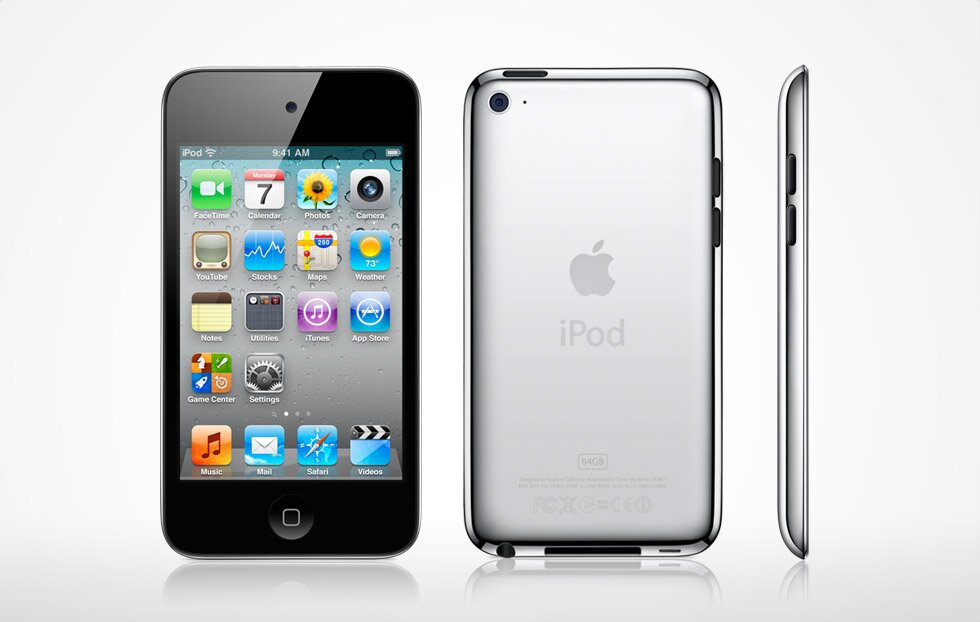
The iPod Touch also got a price decrease, starting now at $199 for 8GB, and is now available in white.

Selasa, 07 Juni 2011

Apple Unveils iCloud, iOS 5, Shows off Mac OSX Lion

It's that time of year again! Apple holds a developer's conference every year in San Francisco called WWDC (Worldwide Developers Conference, discussing, usually from more of an app developer's point of view, some of the new products or services that Apple is creating. This year's event was sold out in less than ten hours, and tickets weren't cheap either, so we'll see what they paid to see.


Steve Jobs, Apple's CEO (Currently on medical leave), with the help of some fellow Apple employees, announced three new products/services, and showed off one more, that had already been announced. None of these three products are actual physical products, but they are just as interesting.

Apple's iCloud logo
iCloud: The first product announced is called iCloud, and is an online service similar to the current, and slowly phasing  out, Apple service Mobile Me. iCloud is an online service that stores and syncs "your music, photos, apps, documents, and more", as written on the Apple website. The service then syncs all of that data with any other internet-connected Apple device. iCloud will also work on a Windows 7 or Windows Vista device will iTunes. Best of all, it's all free, for up to 5GB of storage.

iCloud will store any music bought via the iTunes Store, but you will also be able to store music you got any other way, be it a ripped CD or the Amazon MP3 store, for $24.99 a year. iCloud does this by scanning the song and matching it with an existing song in it's library of over 18 million songs. iCloud now knows you have the "rights" to the song, and will stream it at your command. This won't work for any song not in the library of 18 Million, so if you have music you created yourself, or an unpublished remix of an existing track, this won't work. One of the major benefits of this service, though, is the fact that if you have a song saved as a very low quality track, iCloud will play it back as the 256Kbps quality that iTunes currently offers.

iCloud in Action
iCloud also will take any picture you take with your iPhone, upload it to the cloud, and sync it with any of your other devices. The service lets you see your already purchased apps, and allows you to download an app again, for free on up to five devices. iBooks will also be synced between devices, as well as any documents created with iWorks, which apple just released the iPhone version of.

Another really important feature, iCloud backs up all of the data on your iPhone or iPod touch over the air, so there is no need to connect your device to a computer.

iCloud will be available for free this fall, along with iOS 5, which will be discussed later in the post.

Mac OSX Lion: After discussing iCloud, Jobs handed over the presentation to Phil Schiller, Apple's senior vice president of worldwide product marketing, who talked a little bit about the latest edition of Mac OSX, called Lion.

Mac OSX Lion will be available as a 4GB download from the Mac App-Store, and will cost $29.99. Most of the new features in Lion, at least the ones that Apple showed off, were already talked about, and you can read my post about those here.

iOS 5: The last service talked about at today's keynote was iOS 5. iOS, Apples mobile operating system that's used on the iPhone and iPod touch, is updated every so often, but a major release, like iOS 5, is released only around once a year.


iOS 5 will be available in July as a free update for your iPod touch or iPhone, and will many new features. One of those is the "Notification Center".

The notification center is accessed by simply swiping down on the screen. This will show a list of notifications, including email, text messages, and notifications from other apps on your phone. Notifications will also no longer interrupt everything you are doing, rather they will just slide in above the app you are currently using, and disappear quickly. Notifications are also accessible from the lock screen, and you can easily respond to a notification from the lock screen.

Revamped Notifications for iOS 5


iMessage will replace the SMS app for the iPhone, and will also be available on the iPod touch. iMessage allows users to send text messages via their 3G data provider, or they can send free text messages over a data connection to anyone else with an Apple iOS device. Messages can also include pictures, sound, and video.

iMessage for iPad, iPhone, and iPod touch


Newsstand, one of the new additions in iOS 5, is the iBooks for magazines. Newsstand differs from all other apps, because instead of opening up like a normal app, it opens as a regular folder currently in iOS would. The folder differs from a regular folder, as it contains digital magazines, instead of apps. The background in the Newsstand folder looks like the wooden bookshelf currently found in the iBooks app.
Newsstand, a folder of magazines

Reminders is a new app that will be found in iOS 5. Reminders allows one to set reminders for himself, and organize reminders in to do lists. Reminders syncs with iCloud, Outlook, and iCal, so your to do's will be everywhere.
Reminders for iOS 5


Although Twitter already has an iOS app, with iOS 5, it will be integrated as an app that comes with the device, similar to what Apple is doing already with YouTube. Twitter will now be integrated into many of the apps Apple already has on their devices, such as Safari, Photos, Camera, YouTube, and Maps. One will be able to tweet directly from any of those apps.
Twitter, integrated into iOS 5

The camera is now accessible from the lock screen, so if you ever have a photo you really need to capture, and fast, your iDevice will help you. The camera button on the lock screen even bypasses any passwords set on the device, so your camera will be ready when you need it. The camera also has a new grid that you can use for better alignment while taking a photo.
The camera app, accessible from the lock screen

The Photos app will also be improved, with new photo editing features such as crop, rotate, enhance, and remove red-eye. The camera app also allows you to organize the photos in albums right on your iDevice. Of course, with iCloud, your photos will be synced to all of your other Apple devices.
The new photos app, now with editing

Safari, Apple's built in web browser, is also improved with new tabbed web browsing, a reader function that strips out all of the junk from a website, and just shows you the content you want to see, as well as a reading list that allows you to save articles for reading later. Procrastination at it's finest.
Safari with tabbed browsing

With iOS 5, any iDevice is completely PC free, no computer is needed to set up the device, or to put on music movies, or anything else. The new iCloud service takes care of backup, so you can easily restore a device wirelessly.

Some of the smaller improvements include some new features for the Mail and Calendar apps, an update to GameCenter, Apple's gaming social network, which allows users to set a profile picture, WiFi sync, which allows you to sync music, podcasts, and videos wirelessly with your computer over a WiFi connection. Apple also added multitouch gestures to the iPad, which allow you to swipe through apps by swiping your fingers across the screen, etc. The iPad 2, with the iOS 5 update, will be able to mirror the image you are seeing on it's screen wirelessly, instead of using the HDMI cable currently available.

I myself got extremely excited when writing this post, because this update to iOS 5, along with iCloud, really takes care of many of the problems people had with iOS devices. The only negative is that iOS 5 and iCloud will only be available in the fall, so we've got a while to wait.

The reason that Apple announced these products so early is because they need developers to write apps for these platforms, which takes a while. Apple developers have access to Lion, iCloud, and iOS 5 now, and can start developing for those platforms. If these new products really have you salivating, you could shell out the $100 is costs to become an Apple developer, but you have to own a Mac computer.


Help Gadgetator by simply clicking on one of the sharing icons below. Also, like Gadgetator on Facebook by clicking the "like" button near the top right corner of the page. Happy sharing!

Selasa, 31 Mei 2011

Apple Releases iWork to the iPhone

Students and business-people alike both need, on occasion, to type up a paper really quick, or to create a quick presentation for their meetings the next day. Up until now, if all you had on you was an iPhone or iPod touch, you were mostly out of luck. Using some free or paid apps, you could type up a few sentences, but adding formatting or pictures was really just not possible. Until now.

In a press release earlier this morning, Apple, the makers of the iPhone and iPod touch, announced three new apps for the iPhone, all of which are branded as part of the "iWork Suite". These three apps are Pages, which allows for some heavy word-processing power, Keynote, which allows you to create slick looking presentations, and Numbers, Apple's spreadsheet-creating app.

All three of these apps were first available on the Macintosh, then later came to the iPad, and now have finally arrived on the iPhone and iPod touch. Each app is available in the iTunes App Store, and will cost you $9.99 a piece, which, although it seems kind of pricey, could be worth it. For current owners of the iWork apps on the iPad, the iPhone version is a free upgrade.

Although this seems kind of cool and very useful, creating presentations or spreadsheets on such a small screen is a slightly daunting task. Also, the iPad versions of these apps have not been such a smashing success,  which could be a bad sign for this new version. 

Overall, these apps are a little pricey, but when you need them, you really do need them. If you have to create quick documents or presentations on the fly, then go ahead and shell out the $10 for the app. However, if you don't really need it, but you thing it would be cool to have, you probably should save your money for a better cause.

Senin, 14 Maret 2011

Report: Zune Devices Killed by Microsoft; Brand Name Lives On (UPDATE: Zune Still Alive)

Microsoft's Zune HD
     Microsoft has been trying to compete with Apple's iPod since 2006, when they first announced the Zune devices. The Zune is basically an iPod Touch competitor. It has a large touchscreen, an FM radio, and more features that even Apple's iPad didn't have when they announced it.
     Although the Zune looks good on paper, and even in person, it never quite caught on. For some reason not many people liked the Zune, or maybe it just was more cool to own an iPod. In any case, the Zune has not been a success, and according to Bloomberg, Microsoft is finally giving up the Zune line of devices.
     According to the Bloomberg report, which cited several sources familiar with the Zune line, says that Microsoft will be stopping development of their Zune devices, but will continue the Zune brand as their current media player software and online media store on the XBOX 360 and Windows Phone 7 devices.
     The popular technology blog CNET contacted Microsoft and asked them to comment, but to no avail. On the other hand Bloomberg contacted them and got the following response:
 "We have nothing to announce about another Zune device -- but most recently have introduced Zune HD to Canada via the Zune Originals store and remain committed to supporting our devices in North America.
"We are thrilled by the consumer excitement for Zune across many new platforms, including Windows Phone 7 and Xbox 360. Our long-term strategy focuses on the strength of the entire Zune ecosystem across Microsoft platforms."
     ZDNet's Mary Jo Foley also got Microsoft to comment:
 "We're not 'killing' any of the Zune services/features in any way. Microsoft remains committed to providing a great music and video experience from Zune on platforms such as Xbox Live, Windows-based PCs, Zune devices and Windows Phone 7, as well as integration with Bing and MSN."
     If Bloomberg is correct about Microsoft stopping development of the Zune, Apple's iPod Touch get's one less competitor, and it makes them almost the only one in it's category. There are a few Android based portable media players, but none really closely match the iPod Touch. Although not many used the Zune devices, this still does seem like an advantage for Apple and it's iPod Touch.

Source: cnet.com


Minggu, 20 Februari 2011

Game On! Which Mobile Gaming Device is Right for You?

      When you look through the store for a new mobile gaming device, you may see a few options. How do you know which one is the one you should be taking home?
      The two main players in the mobile gaming market are Sony, with it's Playstation Portable, and Nintendo, with it's DS. Both companies have announced a new model of their device which are not out currently. Nintendo's new model will be available March 27, 2011, while Sony's new device's release date is yet to be announced.

NINTENDO DS

      Nintendo's DS is geared towards more casual gamers. Pokemon, Mario, and Zelda work great with this device. There is a Call of Duty game on the DS, but the graphics aren't great, and there aren't many games like it on the DS.
      The DS uses two screens one on each half of the device. The device folds like a typical clamshell laptop. The top screen is usually where most of the action in a game happens, while the bottom screen, a capacitive touchscreen, is where additional data or controls usually go. On the two sides of the bottom screen are the  A,B,X, and Y buttons, while the other side houses the up, down, right, and left buttons.
      The DS is now in it's 4th generation, with the 5th, the 3DS, coming late March. The current model, the DSi XL, measures in at a pretty big 4.2 inches tall, and 6.34 inches across, and weighs about twelve onces.
      At a newly lowered price of $169.99 you get, along with the obvious ability of playing games, a front and rear facing camera (although no videochat), as well as some cool effects to add to your photos. The DSi XL includes a microphone, which, along with being useful for blowing up balloons in Mario Cart, can also be used to record sound clips, which can later be edited on the DS.
     The DS's online features allow for one to download games and add on's from the DSi Ware store. The device also includes a web browser.
     If you want all of the features of the DSi XL, but don't like the big size, the $149.99 DSi is fine.
     The game selection on the DS is pretty big, but is focused on casual games. Nintendo brings some exclusive games to the DS, like Mario and Pokemon.
     The next generation of the DS, the 3DS, is probably worth waiting until late March for. It's the first mobile gaming device with 3D capability. Read my review here for more info.

SONY PLAYSTATION PORTABLE

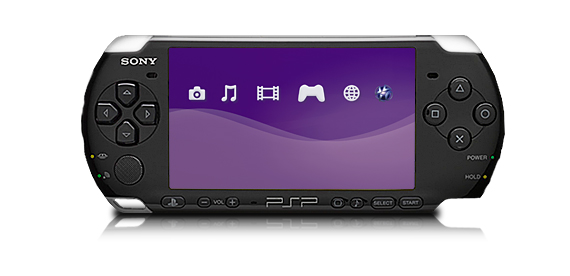
PSP 3000
     Sony's Playstation Portable, or PSP, is the device for more serious gamers. You'll get great graphics for games like Call of Duty, but casual games are harder to find. 
     The PSP is available in two models, the PSP 3000, and the PSP Go. The 3000 is a device about 6.7 inches across, and 2.7 inches tall. At 6.7 grams, the PSP 3000 is almost half the weight of the DSi XL, making it much more portable. 
     The PSP 3000 uses small CD-like disks for games and movies, but also has support for storing content on a memory card. 
     The front of the PSP 3000 houses the 4.3 inch screen, as well as the legendary Playstation buttons. On the other side of the screen is the up, down, left, and right buttons. A mini joystick can be found right under the directional buttons.
     With the PSP's built in WiFi, you can surf the net, download RSS podcasts, and even download and read comics. The PSP also allows you to remotely play games on your Plastation 3 (a device you hook up to the TV) that's at home.
PSP Go
     The PSP 3000 directly competes with the DSi XL with the MSRP of $169.99. For the same price as the DSi XL, you get more intense graphic capabilities, a built in microphone, a big 4.3 inch screen, and even the ability to make calls using Skype. 
     The PSP Go is almost identical in features to the PSP 3000, the main difference is the fact that you have to download games onto the device, as there is no disk drive. The Go also sports a slide out piece that houses the controls.
     Sony recently announced a new model of the PSP, known as the PSP2. This device sports a touchscreen and some more new features, but no pricing or release date information is available yet.

SURPRISE, THE IPOD TOUCH

     Although most don't think of an iPod as a gaming device, the iPod Touch is close to outselling both the DS and the PSP. The iPod Touch is surprisingly good with games, but almost all of the games on the Touch are aimed at very casual games. 
     The iPod Touch is not only a gaming deice, and also allows you to install other apps to do things like read books, book airline tickets, and manage your calander. 
     See my review of the entire line of iPods for more details on the Touch here.

     Overall, the iPod Touch is great for the very casual gamer who also wants to listen to music, watch movies, and even be productive on their gaming device. For the gamer who wants a device mostly devoted to gaming, but still focusing on more casual games, the DS is a great device. The more extreme gamer should go with the PSP. While he PSP has the ability to play movies and other content, it's much better at gaming, and you'll probably find that that's all you're doing with it.

Sabtu, 16 Oktober 2010

[HOW-TO]: Reboot an iPod Touch

  • Ever had your Ipod Touch lock up so bad that iTunes was unable to recognize it? Even iPod Touches crash and need to be rebooted (aka restored or reset). A simple reset or restore can often get your iPod back into working order.
  • If you don't know how to reset your iPod Touch, follow the steps below and watch this how-to video:

Jumat, 12 September 2008

[HOW TO] - Add CYDIA Sources / List

Here are a list of sources for Cydia (some are by default):
- BigBoss & Planet-iPhone: http://apt.bigboss.us.com/repofiles/cydia/
- ModMyiFone: http://modmyifone.com/repo/
- Ste Packaging: http://repo.smxy.org/cydia/apt/
- iSpazio: http://ispaziorepo.com/cydia/apt
- Telesphoreo Tangelo: http://apt.saurik.com/
- ZodTTD: http://www.zodttd.com/repo/cydia/

Other notables:
- intelliborn: http://intelliborn.com/cydia
- FreeCoder: http://iphone.freecoder.org/apt/
- Hack&Dev.org: http://iphone.hackndev.org/apt/
- SaladSoft: http://nickplee.com/cydiasource/
- Urbanfanatics.com: http://urbanfanatics.com/cydia/
- iPhoneCake: http://cake.mapleidea.com/cydia/
- WeiPhone: http://app.weiphone.com/cydia/
- iFoneTec: http://app.ifonetec.com/cydia/
- iSpazio: http://ispaziorepo.com/cydia/apt
- Andy Dam: http://repo.gafoogle.com/
- Steffwiz: http://steffwiz.webs.com/iPhone/Repo

To add sources: Launch Cydia—>Manage—>Sources—>Edit—>Add—>enter the URL—>click Add Source
Here are the sources for Installer 4 so far:
- RiP Dev - http://i.ripdev.com/
- BigBoss’s Apps and Things. - http://apptapp.thebigboss.org/repofiles/installer4/
- iSpazio Official - http://repo.neolinus.org/ispazio/
- Ste Packaging - http://repo.smxy.org/installer4/
- ClubiFone - http://www.clubifone.com/repo/
- iPhone-notes.de - http://sendowski.de/iphone/
- a27 Dev Team: http://a27dev.com/installer/repo/
- Hackmyiphone: http://hackmyiphone.net/installer/
- Wildcat: http://iphone.handheld.com.vn/installer
- iClarified: http://installer.iClarified.com
- Modmyifone: http://i.modmyifone.com/

To add sources: Launch Installer 4—>Sources—>Edit—>click the “+”—>type in source URL—>click Done

UPDATE (Feb. 7, 2011): NEW SOURCES! CLICK --> HERE!

UPDATES - OTHER REVIEWS


Sabtu, 02 Februari 2008

[HOW TO] - To put Your iPod in RECOVERY Mode

Source taken from - Way Too Frequently Asked Questions

12. Help, I bricked my iPod!

No, you didn't. If you seriously screwed it up, the first step is to put it into "Recovery Mode" so iTunes can recognize it.

First, get it to turn off, if you can't with normal methods: Hold down both the Stand-By and Home buttons until it turns off. It can take up to ten seconds (ten chronological seconds, not ten panickily rushed through seconds).

Second, put it into recovery mode:

1. Press and hold the Stand-by button
2. Before the Apple logo appears, press and hold the Home button
3. After the Apple logo appears, release the Stand-by button.
4. Wait up to 30 seconds.
5. After the Connect to iTunes picture appears, you can release the home button. Your iPod is now in recovery mode.

This procedure has moderately tricky timing and may have to be attempted a few times. If you mess up, accidentally release a button at the wrong time, etc. You'll have to shut down your iPod as previously described and start over.

After your iPod is in recovery mode, you can connect it to iTunes and restore.


UPDATES - OTHER REVIEWS


Selasa, 01 Januari 2008

[HOW-TO] - Use iPod Touch Shortcuts

1 - Double Tap browser to expand and minimize the display
2 - Double press the "Home" to display "Play" Music Menu

[Below TIPs are taken from HERE]

1. If you're scrolling through a long document/page in Safari - if you tap the bar at the top of your screen containing the time and battery, Safari will automatically scroll up to the top of the document/page and the show address bar.

2. Turn off WiFi and SSH (using Services from Installer) to save battery power when not in use.

3. Double clicking the home button in any application, or with the screen off will bring up the music controls.

4. Make sure to completely close apps when you are done with them to save battery power. This is accomplished by pressing and holding the home button for approximately five seconds. This boosts battery life big time if you run lots of different apps all the time.

5. Holding down letters on the keyboard will pop up the accents/symbols associated with those letters. Once it pops up, slide your finger over to the accent/symbol you like.

6. Whilst in Mail's inbox view, sliding your finger from left to right on a message the 'delete' button will appear. This also applies in the list view of the Videos application.

7. In Safari double tap to zoom in. You can also "pinch" (putting your thumb and index finger on the screen and pinching in and out) to zoom in Safari and in Pictures.

8. You can charge your iPod Touch from any powered USB port. Such as a computer, printer, media centre. The device does not have to have iTunes installed to provide power to your iPod Touch.

9. Need a spare cleaning cloth for your touch, or an extra cloth to rest your iPod touch on while at work or school? Just go to your local vision care store (or pharmacy) and get an eyeglass/sunglass "cleaning cloth". Cheap and works great!

10. When watching a video, tap to bring up the onscreen controls. When you are done watching a video make sure you press done so your progress will be saved.

11. If you want to set a picture as a permanent background (and not only in the "wake" screen) Set the picture as a background in settings or directly from the picture gallery then off the theme wallpaper in the SummerBoard settings.

12. When typing a lot of text in Safari turn it to horizontal view. The keyboard will be bigger and you can get a better grip of the Touch while typing with two thumbs.

13. When typing if you want to add something from the numbers keyboard just hold down the numbers and slide your finger to the number or symbol you want, and release. It will take you back to your letters keyboard. This way you dont have to tap numbers, tap your number, then tap numbers again to go back. This also applies for using the 'shift' key to apply capital letters.

14. When in Safari, if you are presented with a link, hold your finger over the link, and a bubble will appear showing the URL that the link is tied to.

15. In Safari since you can't open links in a new windows, you can open a new page, tap the bookmarks icon, tap the history folder and direct yourself to the last page you were just on and tap the link from there.

16. When listening to an audiobook, iTunes and your iPod create a new chapter list unrelated to the subject of the book. It's accessible using the same control used for viewing audio tracks (upper right of screen).

17. Make a spelling mistake? Press and hold the word you spelt wrong and a magnifying glass will appear. Slide your finger back and forwth to move the cursor.

18. When you're on a website that has a frame or an iframe with scrollbars in it, use two fingers on that frame to scroll that window and back to a single finger to scroll the whole page.

19. When typing, if you press the space bar twice after a word it will insert a period and another space.

20. If you wish to use the horizontal keyboard to chat on AIM, MSN, Yahoo, GTalk, ICQ, etc. Using Safari go to the site www.meebo.com and use it there.

21. Press the home and sleep buttons togeather to take a screen shot.

22. Spell a word wrong? Press spacebar once to let predictive text replace word.

UPDATES - OTHER REVIEWS